
This way to solve this problem Boots the BIOS every time: Change the Battery on the motherboard.
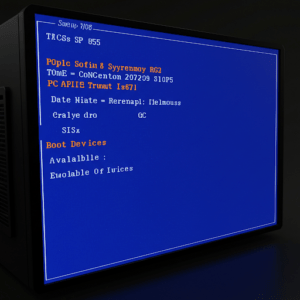
When a Windows computer boots directly to the BIOS every time, it can be an annoying and perplexing issue, particularly if you are unfamiliar with its root causes and potential solutions. This behaviour typically means that the system is unable to detect or correctly load the operating system, or there may be an underlying hardware problem. One common and often overlooked cause of this issue is a failing or depleted CMOS battery on the motherboard. Replacing the CMOS battery is a relatively straightforward fix that might resolve this problem effectively.
The CMOS (Complementary Metal-Oxide-Semiconductor) battery, usually a small coin-cell battery, powers the motherboard’s CMOS chip. This chip is responsible for storing critical information about your computer’s hardware configuration, including the boot order, system time, and other BIOS settings. When the CMOS battery begins to fail, the stored settings may be lost or reset to default values every time the computer is powered off. As a result, the computer may boot into the BIOS to prompt you to reconfigure the settings or because it cannot find the correct boot device.
To solve this problem, replacing the CMOS battery is a highly recommended step. The process is relatively simple and does not require advanced technical skills. First, ensure that the computer is completely powered off and unplugged to avoid any electrical hazards. Then, open the computer case to access the motherboard. Locate the CMOS battery, which is typically a flat, round coin-cell battery (often labelled as CR2032). Carefully remove the old battery by pressing the retaining clip or sliding it out of its slot. Insert a new CMOS battery into the slot, ensuring that it is oriented correctly with the positive (+) side facing upward.
Once you have replaced the battery, reassemble the computer and power it on. Enter the BIOS setup (usually by pressing a specific key like DEL, F2, or ESC during boot) to reconfigure any necessary settings such as the date, time, and boot order. Make sure to save your changes before exiting the BIOS. Your computer should now boot normally, bypassing the BIOS screen and loading the operating system as intended.
It is important to note that while replacing the CMOS battery is a common and effective solution for this issue, there could be other underlying causes as well. For example, incorrect boot device settings, a failing hard drive, or even corrupted BIOS firmware could result in similar symptoms. If replacing the CMOS battery does not resolve the problem, further troubleshooting may be necessary to identify and address these potential causes.
In conclusion, changing the CMOS battery on the motherboard is a practical and often successful solution for resolving the problem of a Windows computer booting to the BIOS every time. This simple hardware fix can restore the proper functionality of your system and save you the frustration of navigating BIOS repeatedly. However, always keep in mind that other issues might contribute to this behaviour, so a comprehensive approach to diagnosing the problem may sometimes be required.